Short answer: which option fits which job
All three can collect feedback on resolved requests. They differ in where the customer answers and where you read the answer.
- Classic CSAT is already built in and on by default for new service spaces. Jira emails the customer when a request reaches a Done status category.
- Native Surveys suits broad listening such as onboarding and offboarding, which are Atlassian’s own examples. A survey can also be connected to a work item, so it is not limited to HR-style questionnaires. You read answers in the survey’s Responses tab.
- AdaptiveSurvey suits teams who want post-resolution feedback answered on the original portal request and reviewed with that request. It adds per-question scores, a dashboard and filters on supported Jira fields.
Kinline develops AdaptiveSurvey. What this article says about Atlassian’s features comes from Atlassian’s documentation, linked where it is used.
Classic CSAT, native Surveys and an app in one paragraph each
Classic CSAT. When a work item moves to a Done status category, Jira sends the customer an email, even if the resolution field is not set. Sending only when the resolution is set needs workflow and notification changes. The email includes a form for a rating and written feedback, and Slack feedback is possible if Chat is set up in Slack. Space admins can edit the survey question, and results appear in the satisfaction report. See Atlassian’s CSAT documentation.
Native Surveys. A no-code builder with templates lets you create a survey from scratch or from a template. You can add fields, split the survey into sections, drag questions into order and mark a question as required. A survey stays a draft until you publish it, and by default only its creator can view or edit it. If Surveys is missing from the navigation, a space admin turns it on under Space settings, then Features, as described in Get started with surveys.
AdaptiveSurvey. This Marketplace app collects feedback on resolved requests in the JSM portal. Jira Automation sends the invitation by email or Slack, the customer answers below the request comments, and the response appears on the issue. You can find it on the AdaptiveSurvey Marketplace listing.
Both can ask several questions
The idea that Jira supports a single survey question is out of date. Native Surveys lets you build a form with multiple fields and sections. Atlassian lists text, email, URL, checkboxes and date among the field types, followed by “and more”. The documentation does not spell out rating scales, so check the field list in your own builder if a star or 1-to-10 scale matters to you.
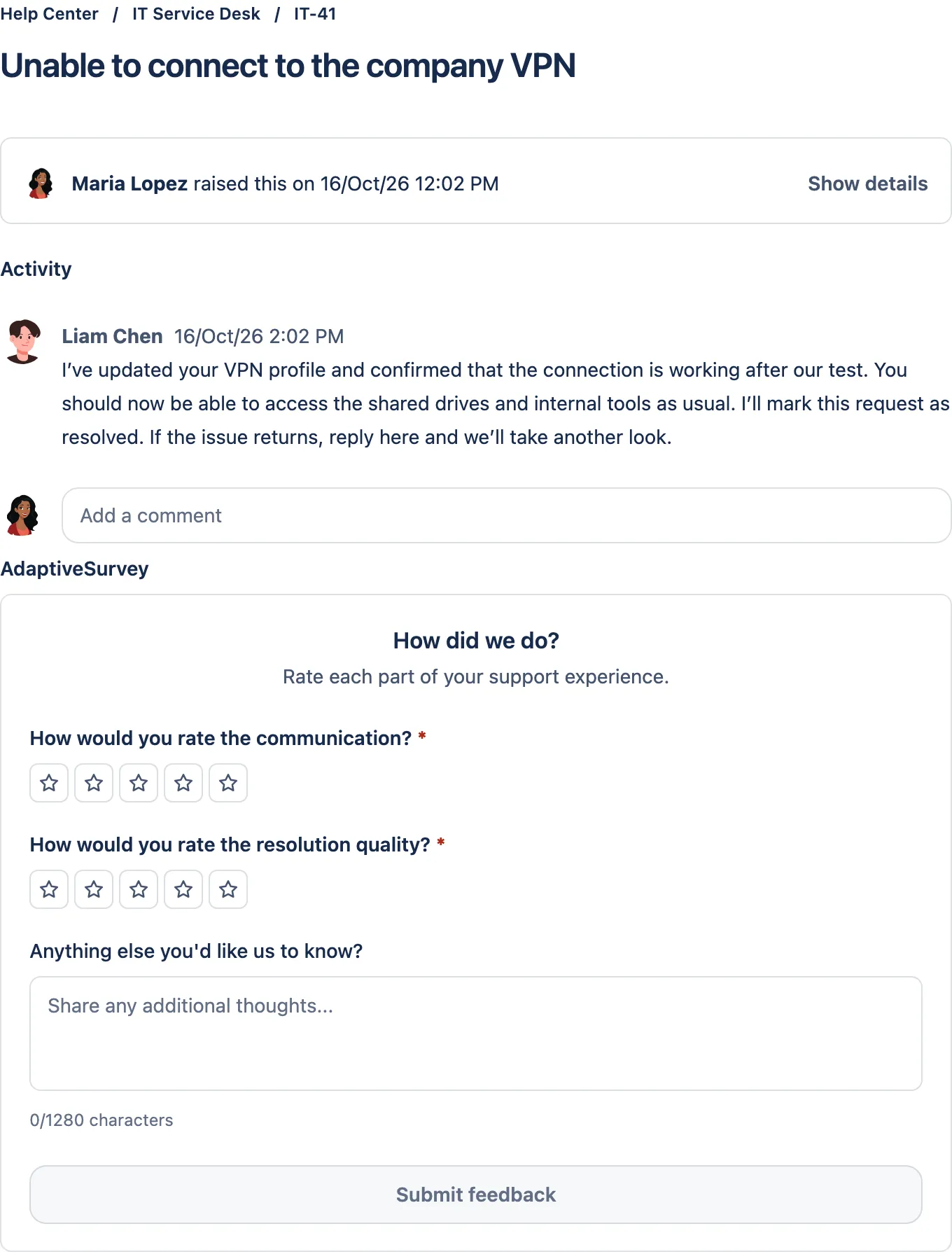
AdaptiveSurvey has two alternative form types for each project:
- Question ratings lets you configure up to eight rating questions, each on a 1-5 or 1-10 scale shown as stars or numbers. You write and order the questions, and decide whether every question must be answered or at least one.
- Experience indicators asks for one overall rating, then lets the customer pick the reasons that match it.
The two form types cannot be combined in one form, and a project has one active form, so you cannot run a different form per request type.
The difference shows up in reporting. If you ask about communication and resolution quality separately, each question gets its own score and trend, so you can see which part of support to investigate instead of interpreting one blended number.
Where a response lives and how it connects to the request
Native Surveys. Atlassian’s page on connecting survey feedback to work items says responses are captured in the survey’s Responses tab, not on the work item itself. Anyone who can view the survey sees each response and its associated work item key, and the key opens the work item. The connection has a few conditions:
- It is a per-survey setting called Show associated work items in responses, so you enable it on each survey.
- Anonymous survey and limit to one response must both be turned off.
- Only responses collected after you turn it on record the work item, so enable it before you share the survey.
- New responses record the work item key and request type.
AdaptiveSurvey. The customer opens the link in the JSM portal using the account that reported the request, and the survey appears below the comments. After submission they see a summary of their answers and can reread it by opening the request again, but they cannot edit it. Agents read the answer on the ticket, in the AdaptiveSurvey panel. It shows Awaiting response with the send date, then the satisfaction score with a Submitted on date once the customer responds. The panel appears once a survey has been sent, and a Jira admin can choose Show for all work items to display it automatically on tickets with a sent survey. See Survey responses on tickets.
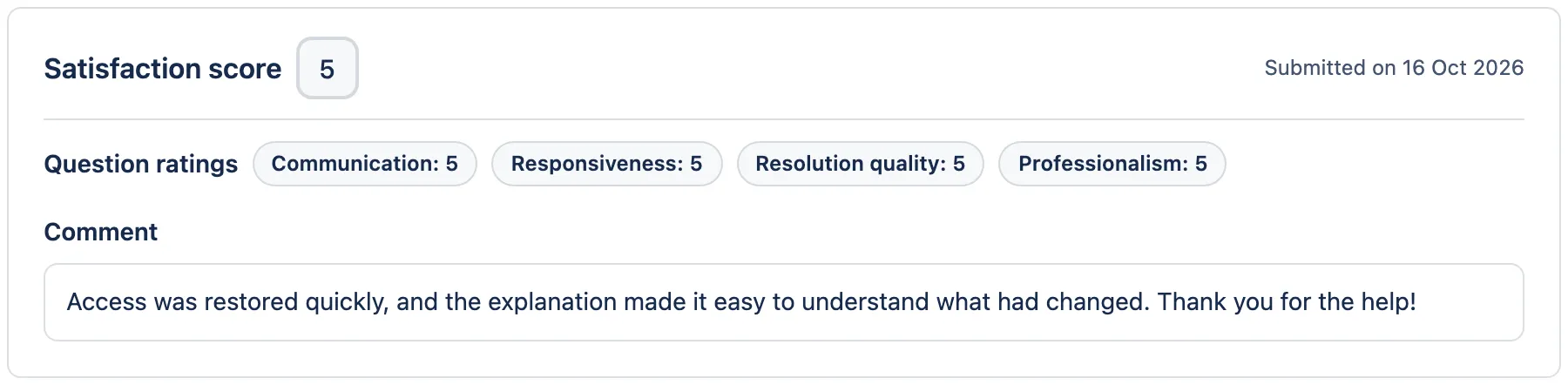
Here is a case where that matters. A customer follows an invitation two days after resolution and cannot remember the issue. The AdaptiveSurvey link opens the portal request, so they can reread the replies before rating, and the agent follows up from the same issue. The benefit is access to context for the person answering and the person reading. It is not a claim of higher completion.
| Classic CSAT | Native Surveys | AdaptiveSurvey | |
|---|---|---|---|
| How it is sent | Email when status reaches a Done category | /survey comment, pasted link or Jira Automation | Jira Automation email or Slack, with your own conditions |
| Questions | Editable survey question | Builder with fields, sections and required fields | Up to eight rating questions, or one overall rating with indicators |
| Where you read answers | Satisfaction report | The survey’s Responses tab | Panel on the ticket, plus the dashboard |
Delivering the invitation
Native Surveys has two routes, and both carry the work item connection:
- An agent or admin selects Reply to customer on a work item, types
/survey, picks the survey and saves. Pasting the survey link also works. - Automation sends it. In survey automation actions, a rule can use a trigger such as Work item transitioned to Resolved, then the Get survey action, then Send email, Send Slack message or Add comment with the
{{fetchedJsmSurvey.distributionUrl}}smart value. Only published surveys can be selected. Atlassian notes that the survey automation actions are only available with paid plans, and only Jira admins and project admins can set up automation rules.
AdaptiveSurvey also builds on Jira Automation, which is how you control who is invited. Add the trigger and conditions that match your process, such as a resolved status plus a country or organization condition. The rule marks the request as invited and sends the reporter a portal link through your email or Slack action. The survey is completed in the portal, not in Slack, and the respondent remains the request reporter. A project admin sets up the rule, because delivery runs through your Jira Automation rather than a separate sending service. Reminders are not built in. If you want one, configure and test it as a custom Jira rule.
For automated delivery, then, the setup effort is similar in kind: you build a rule in Jira Automation either way. The difference is what the invitation leads to: a native survey whose answers sit in the Responses tab, or the portal request with the answer on the issue.
Reviewing results
For native Surveys, Atlassian’s review and export page describes three things. The Summary shows views, responses and completion. The Responses tab lists individual responses. More actions, then Export as CSV, exports the data. The page does not mention filtering responses by Jira fields, so if you need to slice by office or customer type, test that in your own native survey before you decide.
For AdaptiveSurvey, the dashboard shows mean satisfaction, targets, invitations, responses, response rate, trends, score distribution and question scores for a project or a compatible combined project scope. Filters cover date, assignee, reporter, type, priority, resolution and supported custom fields, in include or exclude mode. Here is a worked example for a manager who wants to know whether communication differs across offices:
- Ask a communication question on the survey form.
- Filter the dashboard by the Location field, including Madrid and London.
- Open the linked requests behind low scores and read the comments.
- Export the filtered responses to CSV, with selected Jira fields and full comments, for a service review.
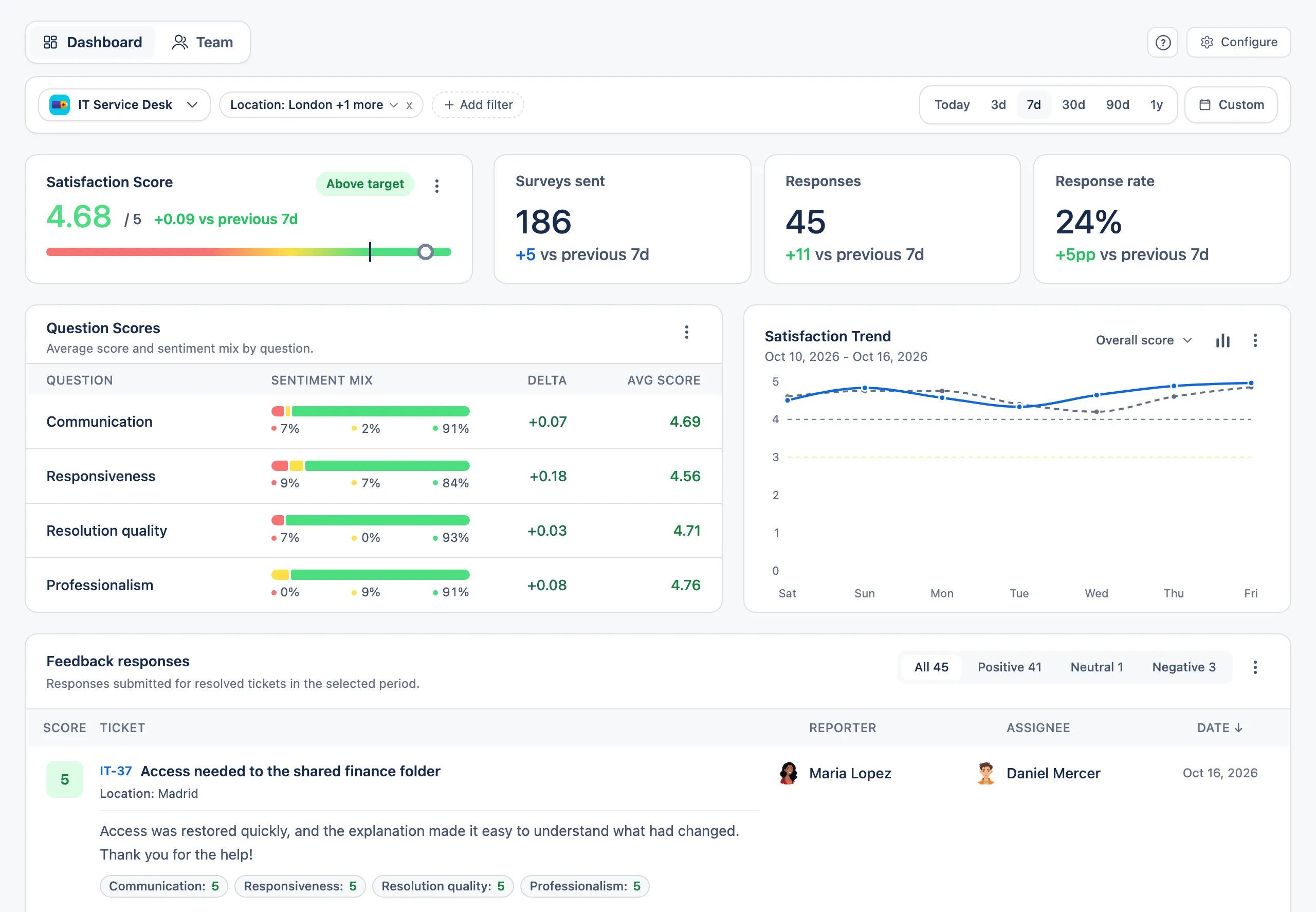
This works when Location is already a supported Jira field. Supported custom filters are selection, cascading, checkbox and user-picker fields; text, date, number and Assets fields are not supported as filters. Type is the Jira work type, not the JSM request type. A filtered view shows differences worth investigating, not their cause. For a deeper walkthrough, see filtering Jira CSAT feedback by team, country or customer type.
If you switch: what to expect
Responses already collected stay with the product that collected them. The AdaptiveSurvey documentation describes collecting new responses and exporting them, not importing responses from another product, so plan on native Surveys history staying in native Surveys.
Before you move a project, export the native survey with its own Export as CSV option. If question wording or rating scales differ between the two, treat the first AdaptiveSurvey period as a new baseline instead of extending an old trend line. If you are replacing a retired survey app, this comparison for ServiceRocket Surveys users covers that migration.
A one-project trial plan
Run both on one project where you control the automation rules.
- Native Surveys: activate Surveys in the space, build a short survey, turn off the anonymous and one-response settings, enable Show associated work items in responses, then publish. Send it on one resolved request with
/surveyand open the Responses tab. - AdaptiveSurvey: install it from the Marketplace, choose Question ratings, and set up the Jira Automation rule from the customer survey documentation. Open the invitation as the request’s reporter, answer below the comments and check the ticket panel.
- Review: filter by a field your managers actually use, such as Location, and check that you can reach the matching requests and export them.
Choose the setup where the people who read the feedback can reach the request behind each answer without extra steps.