ServiceRocket’s Surveys for Jira Service Management reaches end of life on October 30, 2026, and some paid terms run longer. If you’re looking for a surveys for Jira Service Management alternative, work in this order: export your data, write down what the survey does, then rebuild what you need in a replacement. There’s no need to choose a replacement before your data is safe.
This guide covers the export, an inventory to work from, and how Atlassian’s classic CSAT, Atlassian’s native Surveys and AdaptiveSurvey compare against that inventory.
What the notice says and how to confirm your own end date
ServiceRocket’s documentation site carries the end-of-life notice. It says:
- Surveys for Jira Service Management is “no longer available on the Atlassian Marketplace and can no longer be purchased.”
- The official end-of-life date is October 30, 2026.
- Customers with an active subscription keep full access, “including support and maintenance, through the end of their current paid subscription term.” In some cases that term runs beyond October 30, 2026. After it ends, the app is no longer operational for that account.
- ServiceRocket recommends exporting your survey data through the API or the Export All Scales feature.
The notice doesn’t say when your own term ends. Ask ServiceRocket support (the notice links to its support page) and write the date down before planning anything else.
Export before anything else
CSV from the report. On the Export All Scales page, the path is Surveys report, then Assignee and Question, then Export all scales. Use it rather than plain Export if you ever changed scales, because Export only downloads data at the latest scale settings. Compare the row count with the report to confirm nothing is missing.
API. The developer guide covers authentication and parameters. You need Jira administer permission and an API key, and you enable the API in the project’s Survey settings. Two details cause most mistakes: without dates the endpoint returns roughly the last 30 days, and from and to only work together. Copy the endpoint from your own project’s configuration rather than from the examples.
If you enabled ServiceRocket’s feedback custom fields (CES, CSAT and NPS Score), don’t rely on the values on your Jira issues as your only copy.
Inventory what your survey does
Before comparing anything, record what the current survey actually does. These items come from ServiceRocket’s question and language page, configuration page and alternative automation page.
| Capture this | Why it matters |
|---|---|
| Enabled questions and added open questions, in order | The first question appears in the customer email, so order is part of the experience. |
| The multi-select follow-up for low or high scores, and its options | It is the closest thing to a “reason” question. |
| Languages, and per language the title, email subject and body, question text, success message and button labels | Confirm the replacement covers each language you use; wording lives in both the form and the invitation. |
| Trigger status and any alternative automation rules (a Jira rule that sends a web request to ServiceRocket), including JQL conditions or schedules | You’ll rebuild these, and switch the old ones off at cutover. |
| Feedback custom fields, and the JQL filters, dashboards or alerts that use them | They are separate from the survey and may break silently. |
| Goal values for NPS, CSAT and CES | You’ll want to restate targets in the new tool. |
| Any API use or reviewer notes | Check whether a replacement offers either before you depend on them. |
Also note which report your managers actually read: NPS, CES or CSAT. That decides how much the checks section below matters to you.
Keeping feedback with the original request
Picture a customer who follows an invitation two days after their request was resolved. They don’t remember the details, so they open the request, reread the conversation and rate that specific experience. With AdaptiveSurvey the form sits in the Jira Service Management portal request. The benefit is context: the conversation is in view while they answer, and the agent reviews the answer on the same issue.
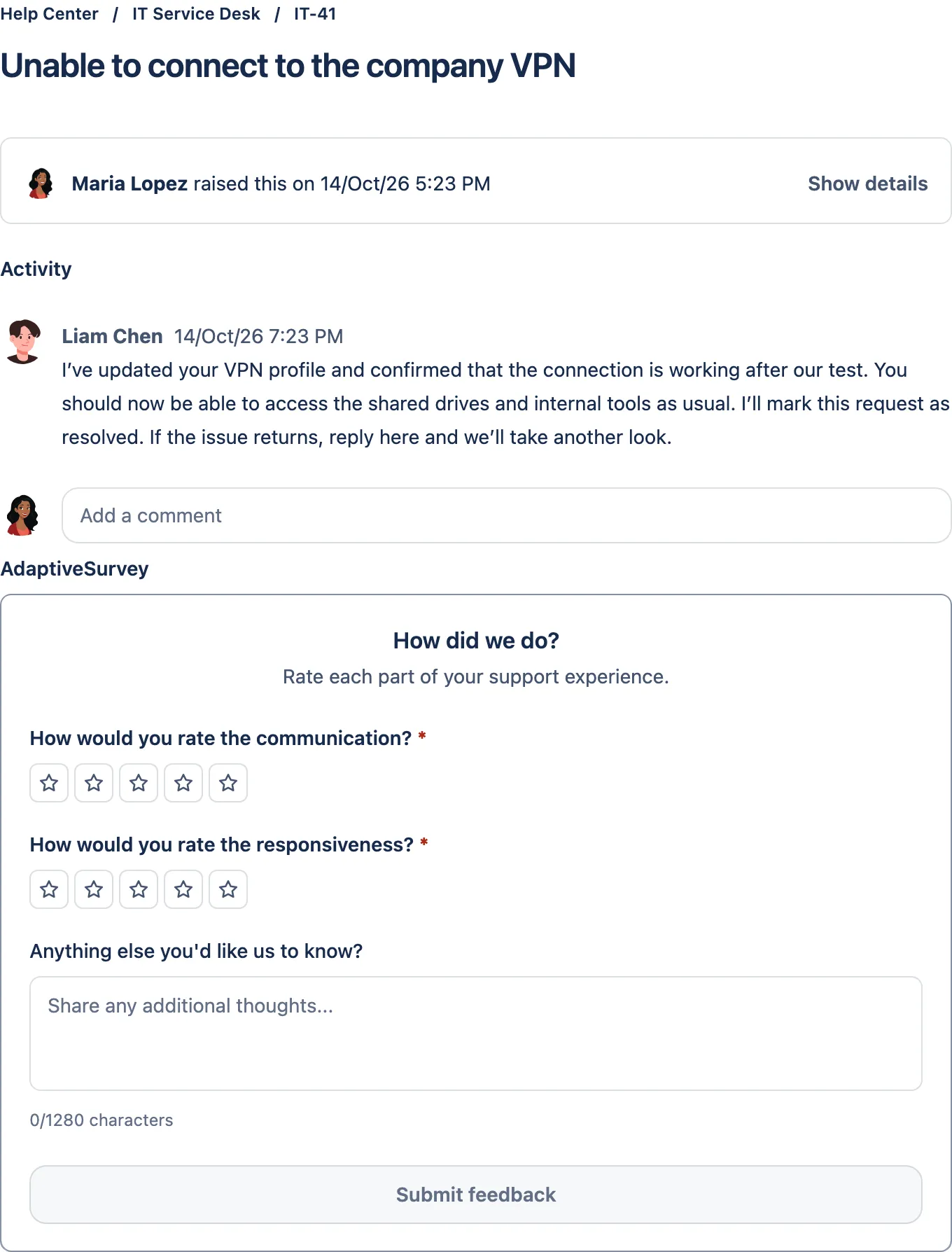
Kinline’s customer survey documentation says the survey link opens the request in the customer portal and the form appears below the comment section. The form is whichever type you configured: separate question ratings, or one overall rating with optional indicators.
The survey is for the person who reported the request, and they must open it signed in as the reporter. It isn’t anonymous or open to other participants, each issue takes one submission, and answers can’t be edited afterwards. If your team relied on shared survey links, anonymous collection or repeat submissions, plan around that now.
Choosing who is invited and how
With AdaptiveSurvey, you control survey invitations through Jira Automation: you decide which resolved requests are invited, and whether the reporter receives an email or a Slack direct message. Jira Automation sends the message, so the trigger, conditions and delivery settings stay in your hands. Kinline’s email setup guide has the exact field values. The rule has four parts:
- Trigger: work item transitioned to a status in the Done category.
- Condition: the
kinline-adaptive-surveysentAtproperty is empty, so a re-resolved request doesn’t trigger a second survey. - Action: set the
kinline-adaptive-surveyentity property, which makes the survey available to the reporter in the portal. - Action: send the reporter an email, or a Slack direct message, containing the portal link
{{issue.url.customer}}. The survey is still completed in the portal, not in Slack.
Add conditions such as issue type, work item fields, user or JQL to narrow who is invited. The screenshot below shows a rule in a Kinline test project that triggers on a Resolved transition, checks Country and Organizations, sets the survey property and emails the reporter. The country and organization values are examples, not required settings.
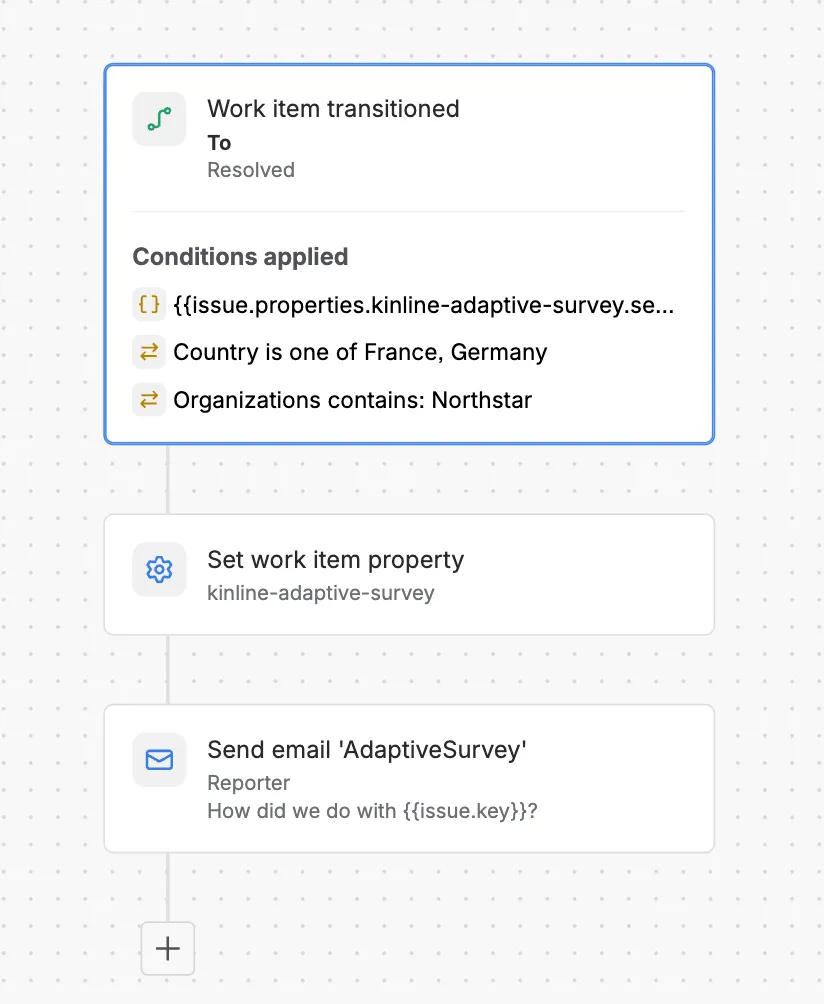
Build and test the rule in a test project first. Kinline’s Before you start page recommends turning off Jira’s built-in satisfaction survey (Space settings, Request management, Customer satisfaction) so customers don’t get two requests. Switch off any old ServiceRocket rule for the project too. If you edit the email wording in AdaptiveSurvey later, update the email action in the existing rule as well, because the app’s wording only prefills new setup.
If your old survey sent reminders, delayed invitations or scheduled sends, add those as custom Jira rules; AdaptiveSurvey has no built-in reminder manager.
Finding where low scores come from
Suppose a service manager sees a low average and wants to know whether one office is behind it, or whether the feedback comes mostly from internal or external customers.
- Filter the dashboard by a Location select field and compare the matching responses and linked requests.
- Show a Client Type field beside each response, so internal and external customers are visible without opening every ticket.
- Export the filtered responses to CSV for a service review.
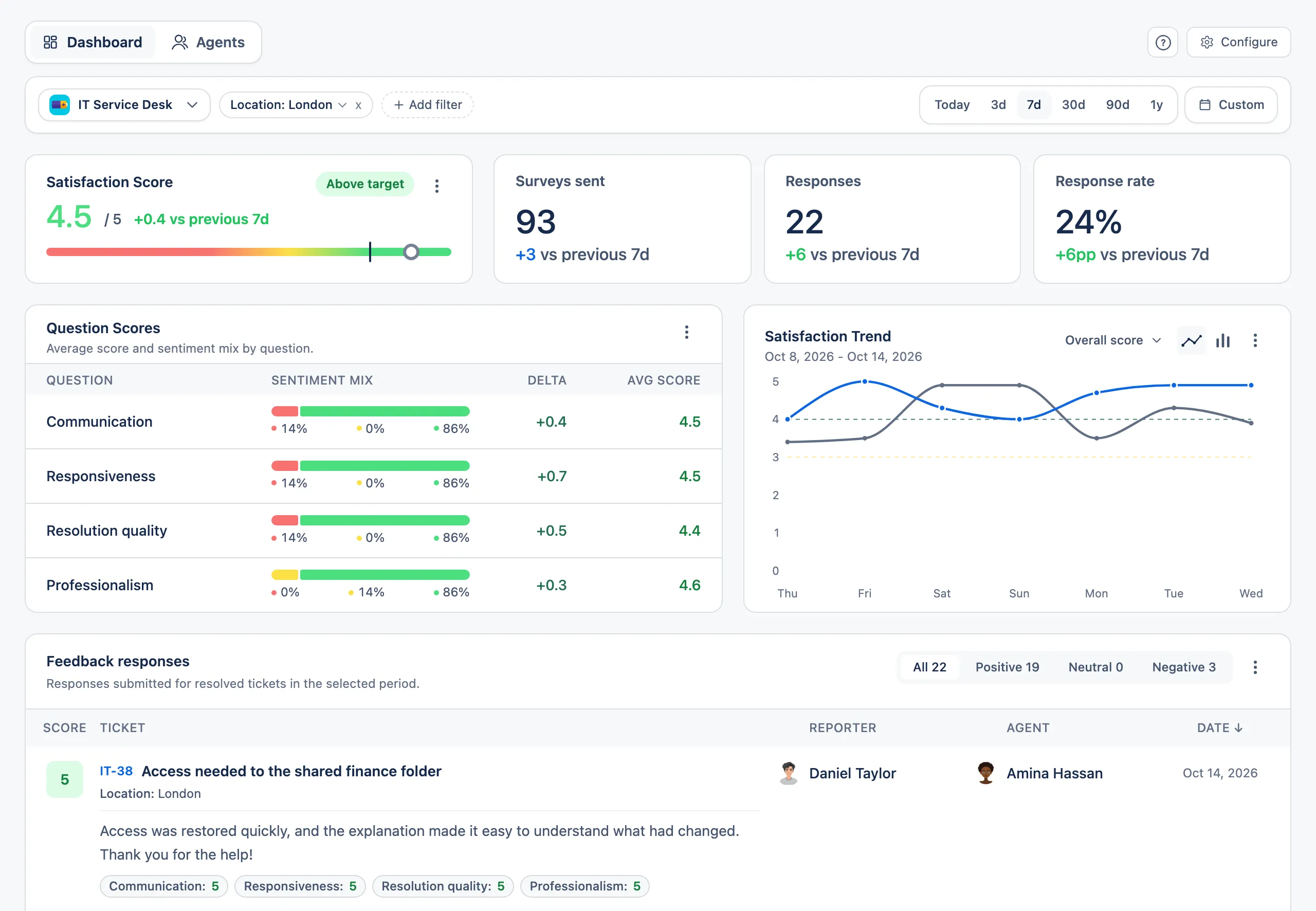
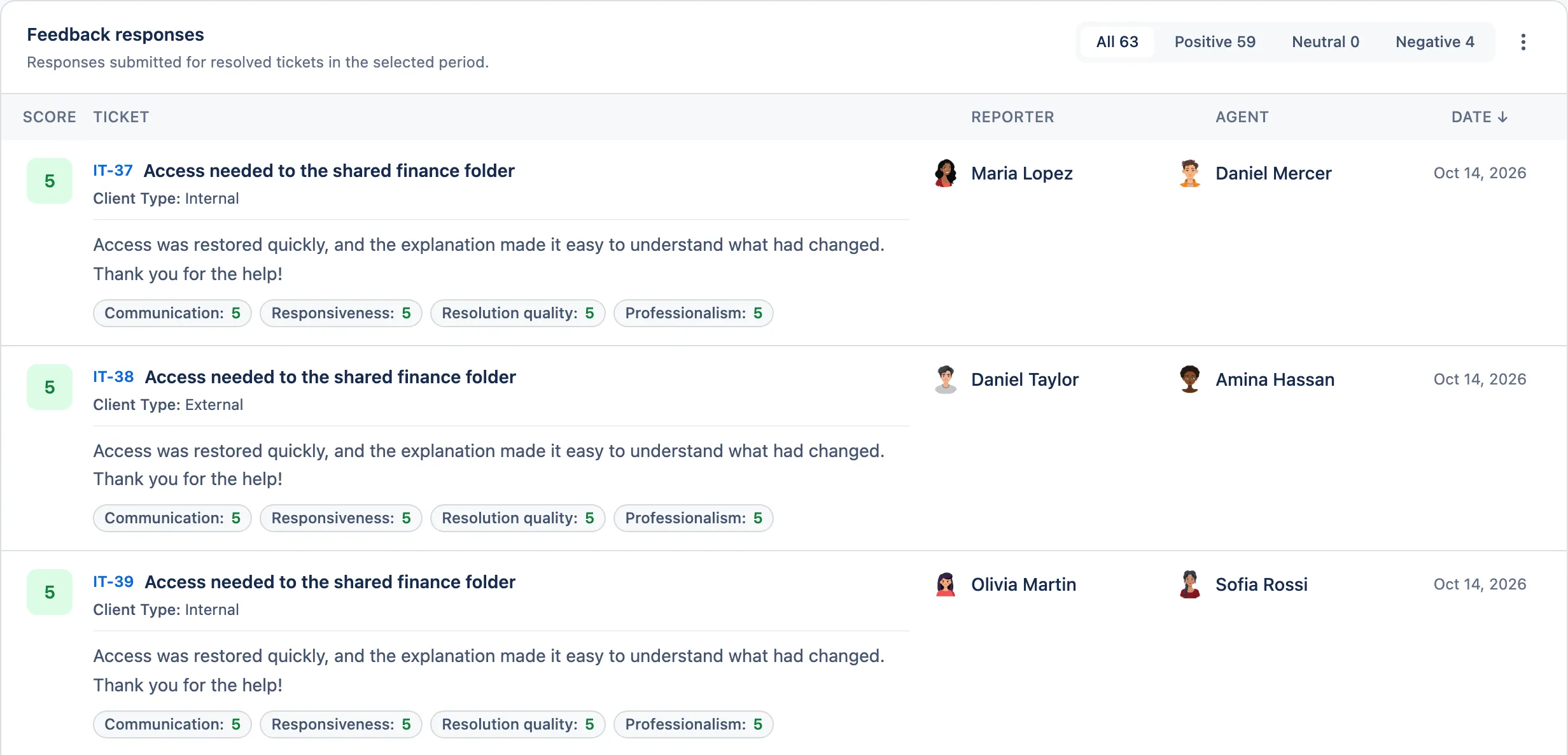
Filtering works on supported Jira custom fields: select lists, multi-selects, radio buttons, cascading selects, checkboxes and user pickers. Text, date, number and Assets fields can’t be used as filters, and the field must be on the project’s screen and in a context that covers the project and work type (custom field filter guide). Both Location and Client Type must already exist in Jira with their values kept on the ticket. Client Type is a field your team maintains; AdaptiveSurvey doesn’t classify customers as internal or external.
Displaying a field beside responses is a separate setting with wider field support, including text, number and date fields. The choice is saved as a shared project setting, and saving needs Configure access.
The CSV download covers every filtered response across pages, with the display fields you chose and full comments. Jira field values are read at export time, and it is a manual export rather than a live analytics integration.
Compare options against your inventory
Kinline develops AdaptiveSurvey, so weigh this section with that in mind. The comparison draws on Atlassian’s and Kinline’s own pages and doesn’t cover every option on the Marketplace.
| Your need | Atlassian classic CSAT | Atlassian native Surveys | AdaptiveSurvey |
|---|---|---|---|
| How it reaches customers | On by default for new service spaces; the resolved-request email includes a rating and written feedback form. Requesters can also answer in Slack if Chat is set up in Slack. | Activated per space under Features by a space admin; shared by link, with access set by portal channel settings. | You control invitations through Jira Automation: the reporter gets a portal link by email or Slack direct message, and answers on the request. |
| Trigger | Moving to a Done status category, even without a resolution. | Not automatic; the announcement says surveys can be added to automation rules. | You choose the trigger and conditions in your rule, for example a Done-status transition plus field conditions. |
| Survey design | The survey question can be edited. | No-code builder and templates; the announcement lists ratings, multiple choice and free text. | Question ratings or experience indicators, 1–5 or 1–10. |
| Reporting | Satisfaction report. | Charts, filtering, free-text responses and CSV export. | Dashboard with filters (including supported custom fields), display fields, CSV export. |
One caveat for native Surveys: per-request delivery rests on an undated Atlassian staff reply in a community thread (one survey per request type plus an Automation rule, with no survey-specific smart values). The same thread leaves open whether answers map back to tickets, so test that if you need it.
How AdaptiveSurvey’s forms map to your inventory
- Question ratings give separate scores per area. You choose up to eight visible questions, their wording and order, and whether every question or at least one must be answered. Use them to see whether communication or resolution quality is the weak spot, instead of reading one overall score.
- Experience indicators reveal optional choices for the overall rating’s positive, neutral or negative band, with labels and order you set. They turn recurring reasons into something you can count, though they are customer-reported reasons, not a diagnosis.
- Scale and display: 1–5 or 1–10, as stars or numbers, with configurable score bands and a satisfaction target.
If your ServiceRocket survey used the multi-select follow-up, indicators are what to evaluate against it, not a guaranteed equivalent. Each band takes three to eight indicators and the choices are optional for the customer, so read your old options against the new bands before deciding.
Checks that can change your decision
- NPS reporting. AdaptiveSurvey answers are whole numbers on a 1–5 or 1–10 scale, so it is not a 0–10 NPS survey and has no NPS form type. If managers read an NPS number from ServiceRocket, decide how you’ll report it.
- CES reporting. You can ask an effort question as a question rating and read its average, but there is no CES form type or CES calculation.
- One form per project. Question ratings and experience indicators are alternative forms, and there are no separate forms per request type. Filtering who is invited doesn’t change that.
- Historical data. There is no import path from ServiceRocket into AdaptiveSurvey. Keep your CSV or API exports as the archive, label them with their scale, and treat the first AdaptiveSurvey responses as a new baseline.
- Original values. Submitted answers keep their score, scale and language, plus the confirmation text and comment label shown at the time. Reports can convert older scales for comparison, but chart labels for an existing question or indicator follow its current wording.
- Response rate. Invitation counts follow the survey marker set by your rule, not confirmed delivery, so don’t compare the rate directly with your old tool’s.
Run a cutover test
- Confirm your ServiceRocket end date and check that your exports are complete.
- In a test project, turn off Jira’s built-in satisfaction survey and disable any ServiceRocket rule for that project.
- Configure the form (question ratings or indicators) and preview it.
- Build the Jira Automation rule, then resolve a test request.
- Open the request as the reporter, submit feedback, and confirm a second submission is blocked.
- Open the issue as an agent and review the answer.
- Filter the dashboard by a supported Jira field, display a field beside responses, and download the CSV. Check the columns your reviews depend on.
- Decide how to treat history: keep the ServiceRocket exports as an archive and don’t merge them with new results.
- Switch off the old rules in your live projects.
If the inventory fits, try the app from the AdaptiveSurvey Marketplace listing and follow the AdaptiveSurvey documentation on a test project first.