Short answer: when a Form is enough and when it isn’t
Yes, a Jira Form can collect CSAT-style answers on a request, and for low-volume or one-off feedback that may be all you need. But a Form is built for gathering structured information, so the customer is asked to fill something in. The score, the trend and the view by team or priority are reports you build with Jira’s own tools. If the survey recurs and you want customers to answer in seconds on a scale they already know, with separate question scores, a target and filters, a purpose-built app usually means less building.
Kinline develops AdaptiveSurvey, which is one of those apps, so weigh the comparison accordingly.
What a Jira Form collects
Atlassian’s pages on what forms are and using forms in Jira Service Management describe three ways a Form reaches a customer:
- Attached to a request type. The form appears when a customer raises that type of request from the portal. This is intake, not feedback after resolution.
- Added to an existing work item. An agent can add it as an internal or external form, for example to ask a customer for more information.
- Opened from a direct link. The link creates a work item and can be embedded in a Confluence page.
Form fields can exist only on the form, or be linked to Jira fields so workflows, automations and reporting stay in sync. Automation can copy forms, add them to work items and trigger actions on form activity. On a work item, a form can be downloaded as a PDF or XLSX file.
For CSAT, timing matters: you want the question after the request is resolved. A rule that adds an external form on resolution and gets it to the reporter is something you would configure and test yourself, because Forms are not packaged as a CSAT flow. And whatever the rule does, the customer still meets a form with fields to complete, not a rating to tap.
Getting a score and a trend out of a Form
A Form records what people answered. Everything after that is a reporting decision. A workable path looks like this:
- Make the rating reportable. Link the rating form field to a Jira field, which is how Atlassian says forms stay in sync with reporting.
- Test the field in your chosen report. In a test project, confirm that the field type works in the gadget or report you plan to use.
- Define the score. Decide whether it is an average, a share of satisfied answers or something else, and what counts as a good result.
- Add the time dimension. A trend means grouping that score by week or month in the report you build.
- Add segments. Filtering by team, priority or location only works if that dimension exists as a Jira field you can report on.
If you ask several questions, repeat the steps for each one you want scored separately.
What native custom reports already cover
Part of this reporting already exists for Atlassian’s own CSAT ratings. Every service space has a default satisfaction report showing the average rating. Custom reports can use the Average rating series under Customer satisfaction series, filtered by work type, by request type, or by an agent compared with their team. Filters can also switch to JQL.
If standard CSAT ratings are enough, that is a real shortcut. Atlassian ties these reports to customer satisfaction feedback being enabled on your requests, so test whether answers from a Form-based survey show up there before you rely on it.
What native Surveys changes
The advice that Jira only offers a one-question survey does not apply to native Surveys. In Create and manage surveys, you build a survey with a no-code builder, from a template or from scratch. You add fields such as text, email, URL, checkboxes and date, group them in sections and mark questions as required. You save a draft, publish it and share a copied link. Access follows your portal channel settings, which need to be Open to collect responses.
A space admin activates Surveys under Space settings, then Features. Atlassian’s Get started page mentions built-in charts and exports, and its example is an HR onboarding survey sent 30 days after someone joins.
If you want native Surveys for per-ticket CSAT, test two things in a space first: whether a rating-style field is available (Atlassian’s field list names text, email, URL, checkboxes and date), and how a response relates to the request it is about.
A rating people already know: 1–5 stars or 1–10 numbers
With AdaptiveSurvey, customers answer with a rating instead of a form. You can keep what most people already recognise, a five-star scale, or choose ten numbered options when you want finer steps between a poor and an excellent experience. Either scale can be shown as stars or numbers, and you set the score bands and the satisfaction target your team reports against.
Separate ratings for different parts of support
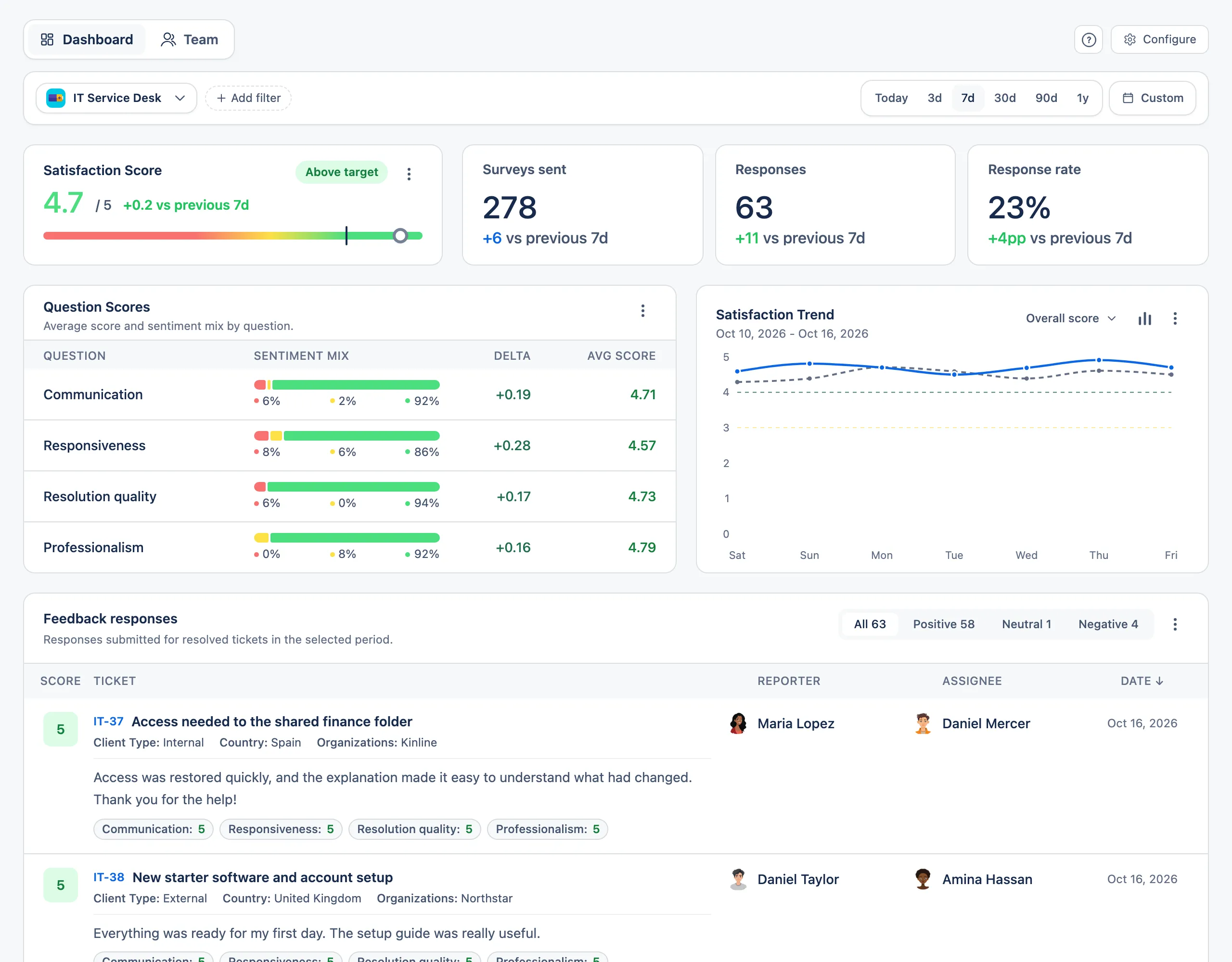
Say a team wants communication and resolution rated separately. You can configure up to eight rating questions, set their wording and order, and require all questions or at least one. The dashboard then shows each question’s score instead of one blended number.
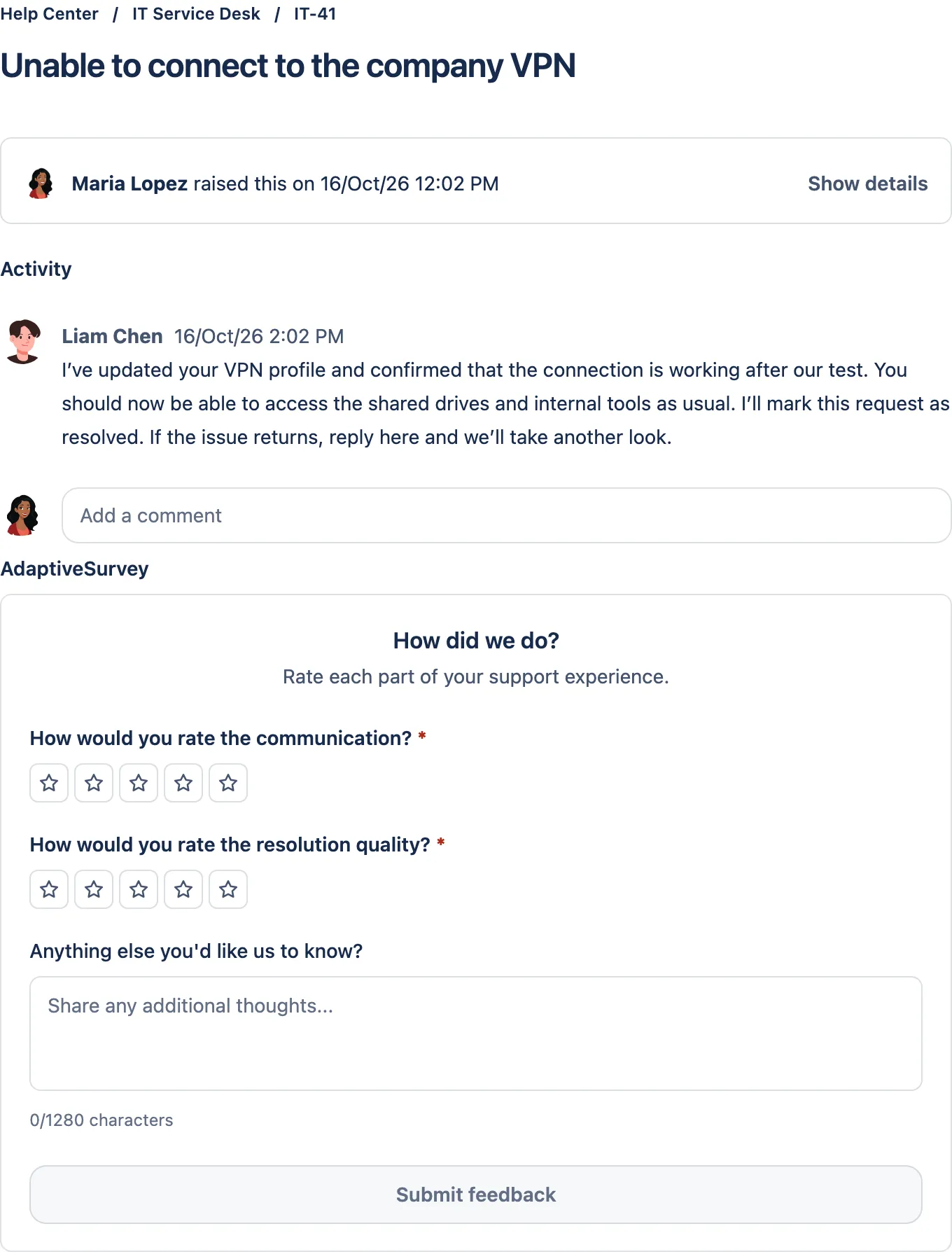
A quicker way to say why
After a bad experience, few customers want to type an explanation. Experience indicators address that: the customer rates the request and chooses what drove the rating from the indicators, rather than writing a comment from scratch. The dashboard shows how often each indicator was chosen, so recurring reasons are visible without reading every response.
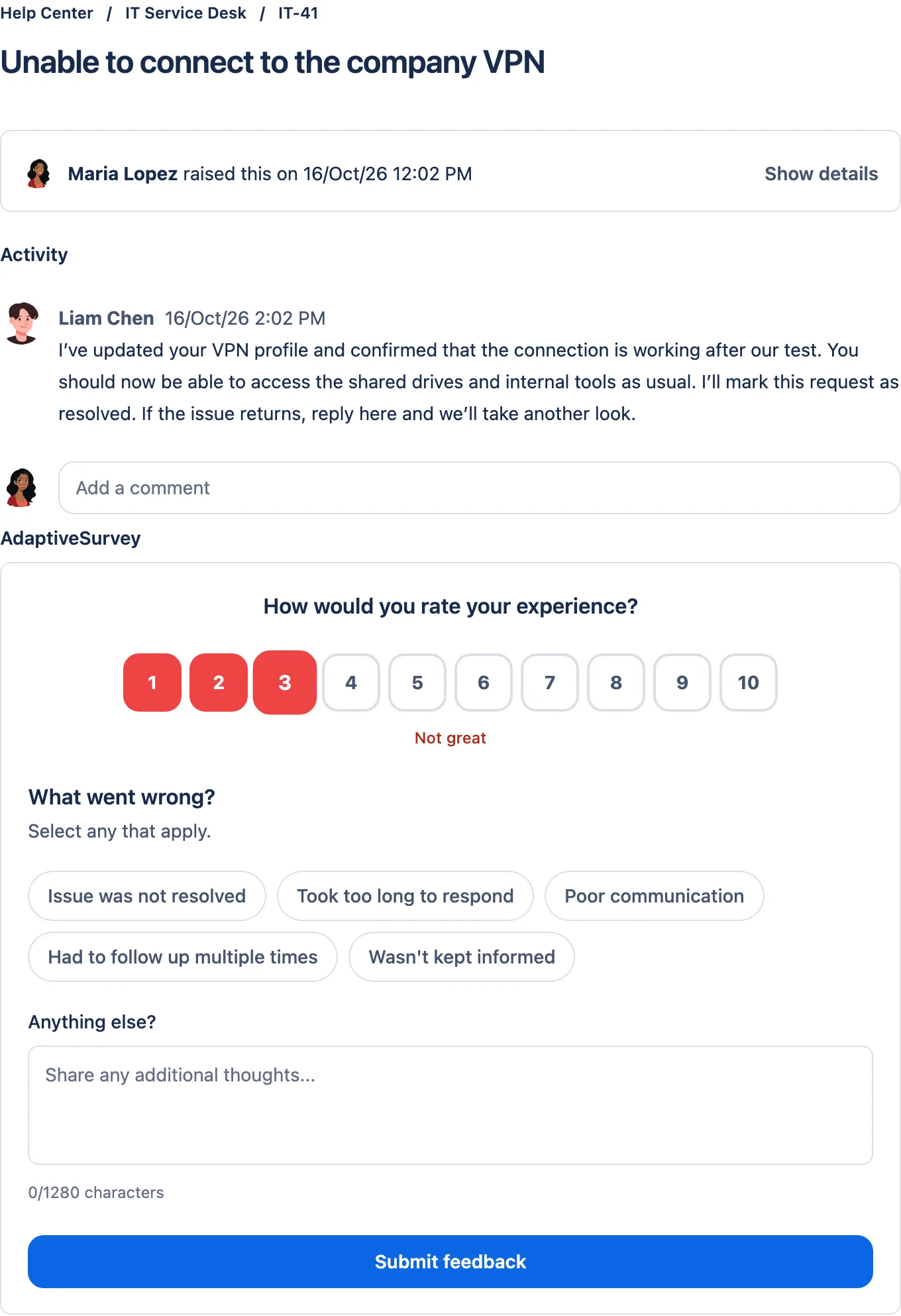
Question ratings and experience indicators are alternative form types, and a project has one active form, so choose the one that fits the service. Use question ratings when you want a score per dimension, and indicators when you want quick reasons.
AdaptiveSurvey vs a Form: when an app is less work
An app moves the reporting build from you to the product.
A trend and a target without building a report. The dashboard shows the satisfaction score against a target you set, response counts, the trend over a chosen period and the score distribution. For forms with several questions, a Score metric picker switches the trend and distribution card between the overall score and one question, and a Question filter re-scores the whole dashboard for the questions you select. A trend tells you where to look, not why it moved.
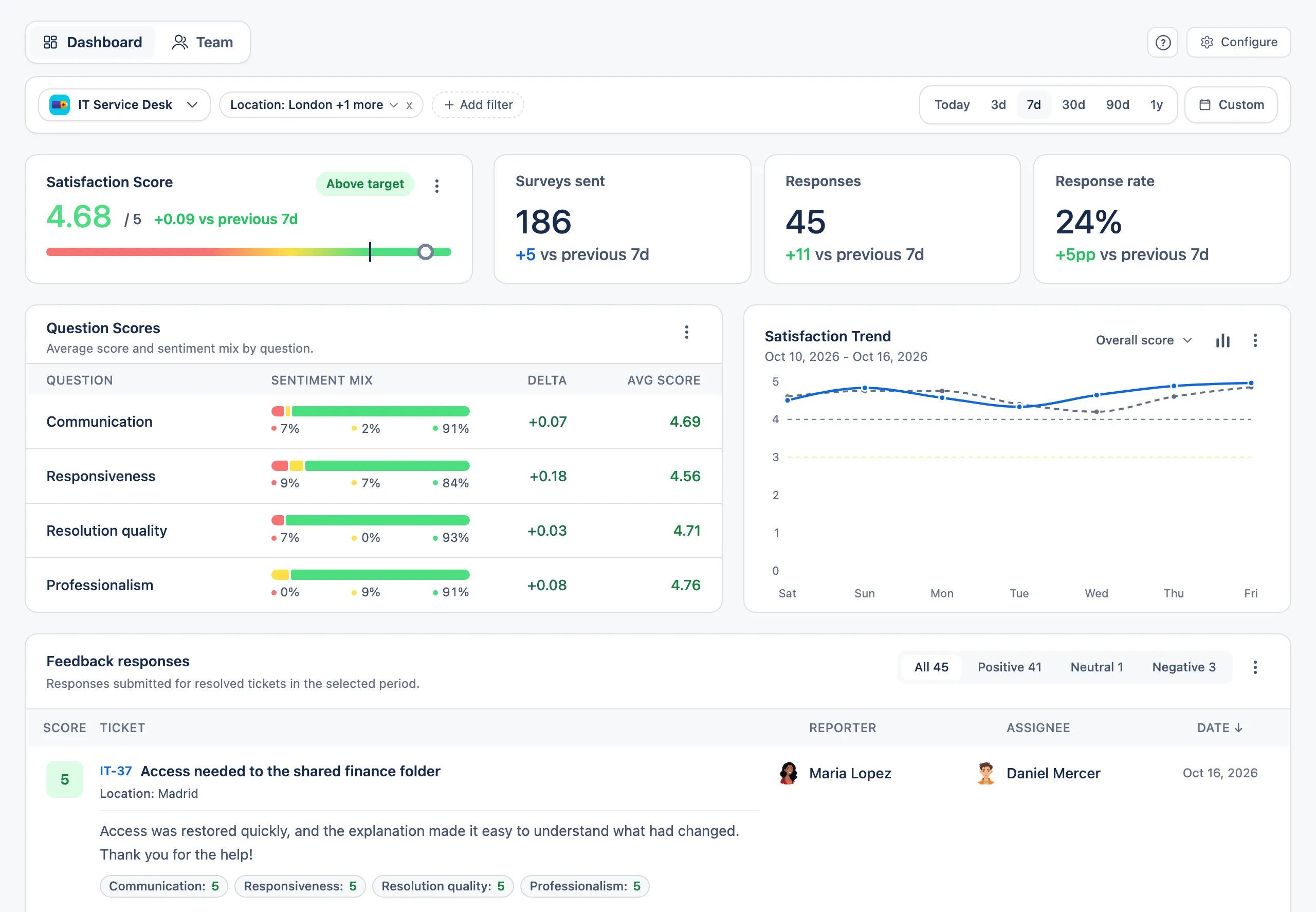
Segment views using Jira fields. A manager who wants to know whether a low average sits in one office or one priority can filter by supported Jira fields such as priority, work type, team and assignee, and by supported custom fields like a Location or Country select field. Filters can include or exclude values. Supported custom filters cover selection, cascading, checkbox and user-picker fields; text, date, number and Assets fields are not supported, so check your field types first. For the JQL and CSV route compared with in-app filters, see Jira CSAT by team, country or customer type.
Invitations on your terms. With AdaptiveSurvey you control invitations through Jira Automation, for example sending the survey email to the reporter when a work item moves to Resolved, limited to the conditions you choose. The invitation links back to the original request, so the customer can read the replies while answering.
One product detail can affect the decision: AdaptiveSurvey has one active form per project, not one per request type.
To see the form and dashboard yourself, you can try AdaptiveSurvey from the Atlassian Marketplace.
Side by side
| Outcome | Jira Form route | AdaptiveSurvey route |
|---|---|---|
| What the customer sees | A form with fields to complete | A rating on a 1–5 or 1–10 scale, as stars or numbers |
| Reason for a low rating | A text or choice field you design | Experience indicators to choose from |
| Collect ratings | Build the form and get it to customers after resolution, through an agent or an automation rule you configure | Ready-made rating form, up to eight questions |
| Score per question | Link fields, then define and build each score | Question scores on the dashboard |
| Target | Define it in your own report | Configurable satisfaction target |
| Trend | Build it in a Jira report | Satisfaction trend and distribution |
| Segment view | Dimensions that exist as Jira fields, in the report you build | Filters on supported Jira fields |
When a Form is enough
A Form is a sound choice when:
- feedback is low volume or a one-off, such as a single process review where you read the answers rather than chart them;
- you only need the answers on the work item, where they can be reviewed or downloaded as PDF or XLSX;
- standard CSAT ratings and the default or custom satisfaction reports already cover what you report on;
- you need conditional questions or custom field logic.
The case for an app grows as the survey becomes recurring and the questions become comparative: which question is weakest, whether it is improving and where it differs. If you are unsure, build the Form version for one team first. Produce a score, a trend and one filtered view from it, then compare that effort, and what customers are asked to do, with a trial of a ready-made app.