To invite only selected requests, add your conditions to the Jira Automation rule that sends the AdaptiveSurvey invitation. A request that fails a condition is never invited. The reporter gets an email or Slack link to the original portal request, answers below the comments, and the agent reads the response on the same ticket.
The short answer: put the conditions in the Jira Automation rule
The rule has four parts:
- Trigger: Work item transitioned, to the resolved status your workflow uses.
- Conditions: the checks that decide which requests qualify, such as country, organization, issue type or a JQL match.
- Survey property: a Set entity property action that sets
kinline-adaptive-surveyon the issue. This records when the survey was sent and makes it available to the reporter in the customer portal. - Send action: an email or Slack direct message that gives the reporter a link to the request.
A request that fails a condition never reaches the property or the message, so it isn’t invited. The customer answers on the original portal request, and the agent reads the answer on the same ticket.
Decide who should be asked
Settle the segment before you open the rule editor. A few ways teams might define it:
- By country: invite only requests from the countries where you run a satisfaction programme.
- By organization: survey one customer organization, for instance one with a service review coming up.
- By request condition: limit invitations to a given issue type or priority, or to whatever a JQL condition can express.
The email setup guide says you can add more conditions if your process needs them. Country and organization are only examples; use fields that already exist and are filled in reliably on your requests.
Three more decisions shape the rule:
- Recipient: the invitation goes to the request reporter, and the reporter is the respondent. Other participants can’t answer, and responses aren’t anonymous.
- Survey form: conditions decide who is invited, not which form they see. Recipient filtering doesn’t create different survey forms per request type.
- Channel: choose email, or Slack if your reporters can receive a Slack direct message from Jira Automation. Slack needs the Jira Automation Slack integration connected.
Build the rule step by step
You need permission to create Jira Automation rules for the service space. In Jira, go to Space settings → Request management → Automation → Create flow. In AdaptiveSurvey, Configure → Survey delivery has a guide for the Email or Slack channel, with the wording to copy into the rule.
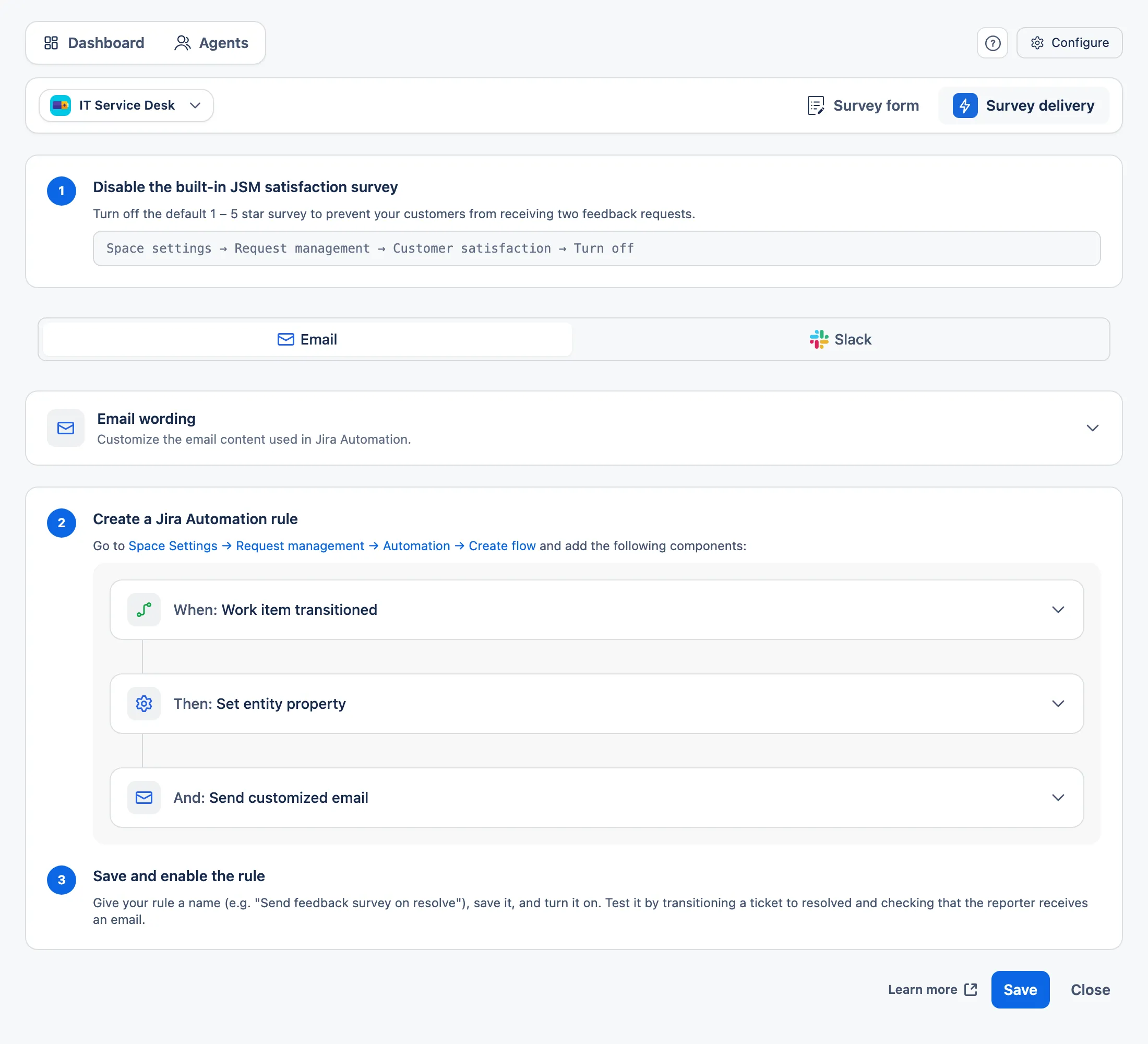
Add the components in this order:
- Trigger: Work item transitioned. Leave From status blank unless the survey should only send from one specific status. Set To status to the resolved or closed status that should send the survey, using a status from the Done category (green in Jira).
- Sent-check condition. A smart values condition where
{{issue.properties.kinline-adaptive-survey.sentAt}}equals Empty. It makes the survey send once, so a request that is resolved again doesn’t produce a second invitation. Keep it unless you want repeat invitations. - Your segment conditions. Add conditions for the countries, organization or other request criteria you chose above.
- Action: Set entity property. Entity type Issue, property key
kinline-adaptive-survey, with asentAttimestamp as the value. Place it before the send action. - Action: send the link. For email, use Send customized email with Recipient(s) set to Reporter, and copy the subject and content from AdaptiveSurvey. For Slack, use Send direct message on Slack, choose the workspace, set To to the reporter’s account ID and copy the message from AdaptiveSurvey.
- Save and turn the rule on.
The documentation holds the exact values and the content to paste, so use it rather than retyping: Email setup and Slack setup.
Reminders aren’t part of this setup. If you want one, you’d build and test that extra Jira Automation yourself; the app has no built-in reminder manager.
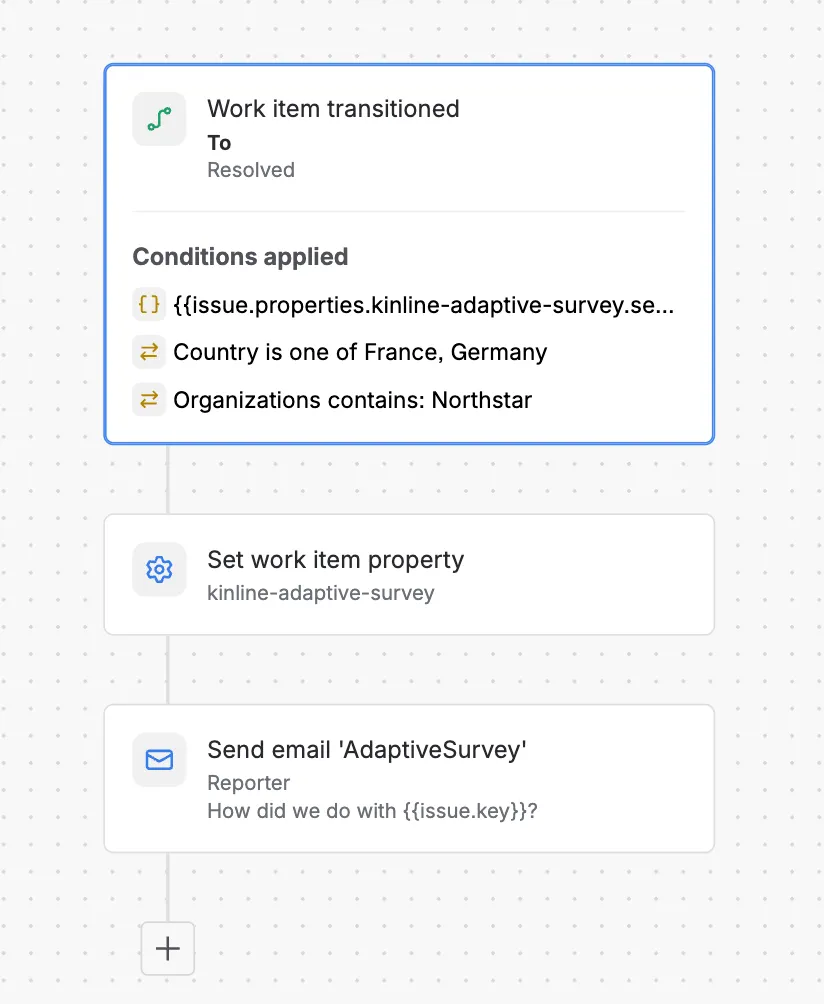
A rule that targets countries and an organization
The screenshot below shows a rule from a test project. It triggers when a work item transitions to Resolved, checks that Country is one of France, Germany and that Organizations contains Northstar, sets the kinline-adaptive-survey work item property and emails the Reporter with the subject “How did we do with {{issue.key}}?”. The countries and organization are examples from that project, not AdaptiveSurvey settings.
What the customer sees on the request
The email or Slack message links to the original request in the Jira Service Management customer portal. The customer must open it with the account that reported the request. A customer who follows the link a couple of days later can reread the conversation to recall the issue, then answer on the same page.
The survey appears below the comments. Slack only delivers the link, so the customer completes the survey in the portal either way. It uses the form selected in Configure → Survey form:
- Question ratings: each question is rated separately.
- Experience indicators: one overall rating, with optional indicators describing the experience.
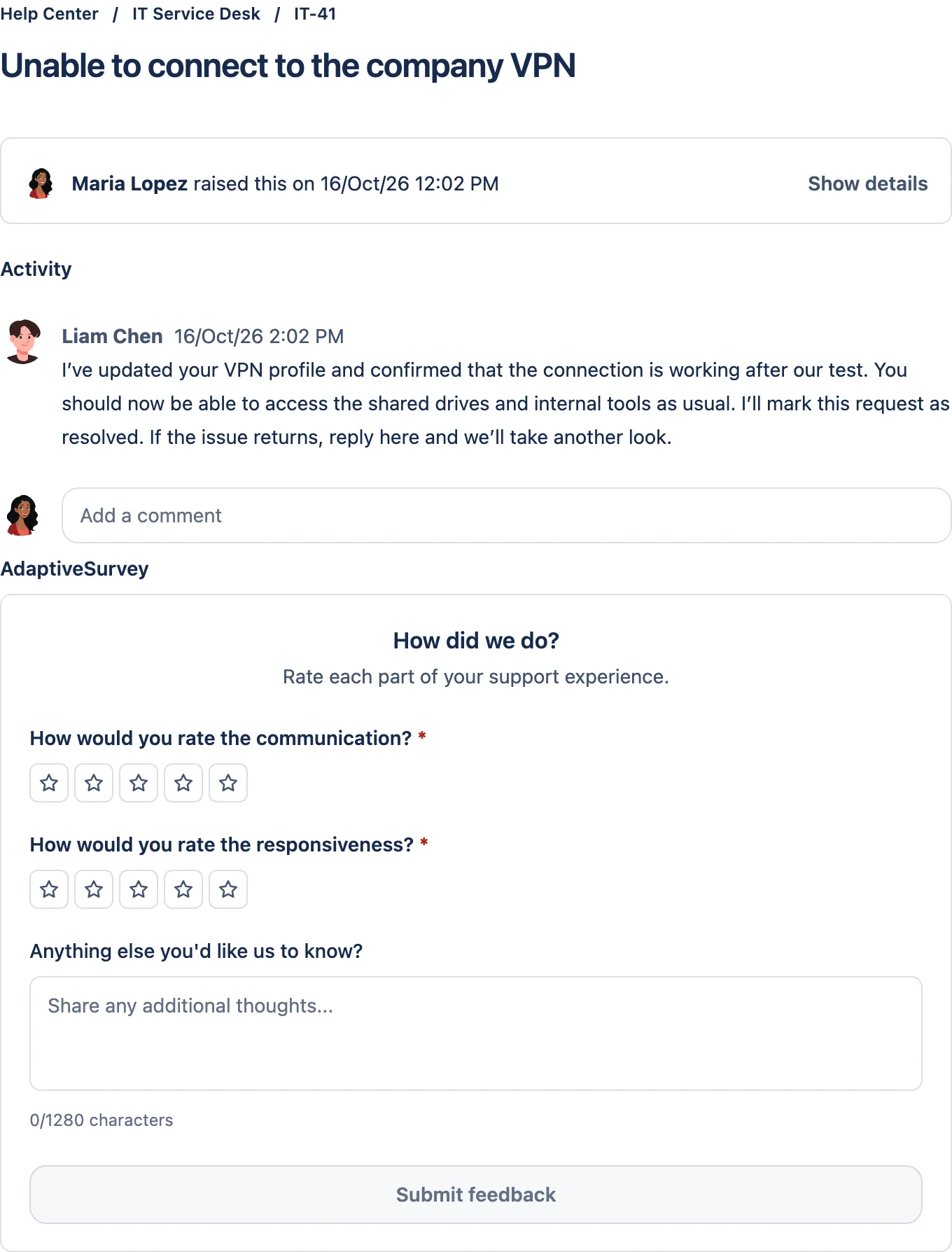
Customers can also add an optional comment and, if Lost Time tracking is enabled, report it with a slider. After they select Submit feedback, they see a confirmation and a summary of their answers. They can reopen the request to review the response but can’t edit it. More detail is in the customer survey documentation.
What the agent sees on the ticket
On the Jira ticket, the AdaptiveSurvey panel appears once a survey has been sent. Until the customer answers, it shows Awaiting response and the date the survey was sent. After submission it shows the satisfaction score with a Submitted on date in the viewer’s Jira time zone; hover over it for the full date and time.
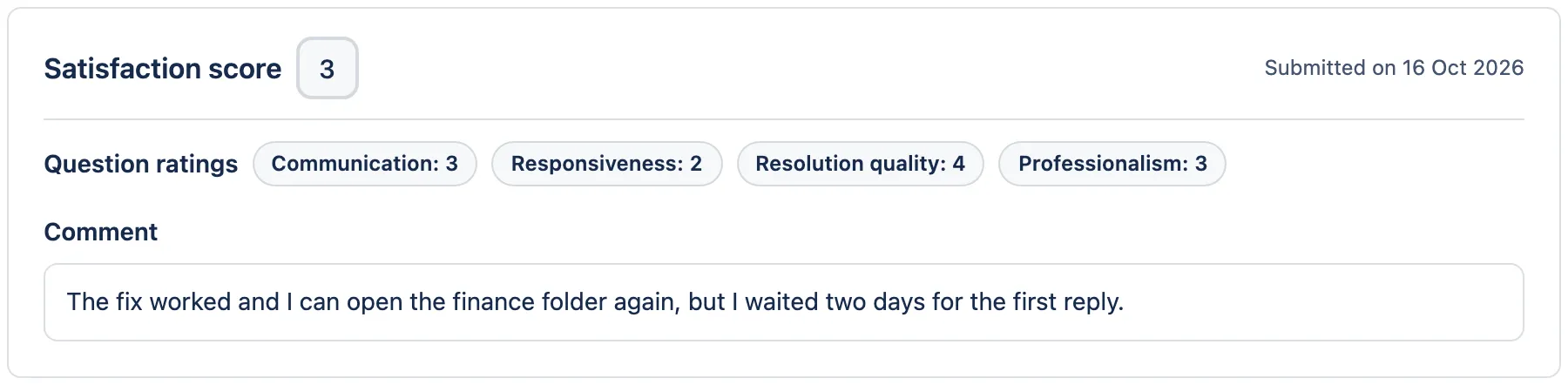
Agents open the panel by selecting AdaptiveSurvey at the top of the ticket. It sits above Activity. A Jira administrator can choose ••• → Show for all work items so the panel shows automatically on tickets with a sent survey; this applies to everyone in the project. See survey responses on tickets for details.
Test with a matching and a non-matching request
Before rollout, use a test space or two test requests:
- Matching request. Create a request that meets every condition (for example, a reporter in an included country and organization) and move it to the resolved status. Check that the email or Slack message arrives for the reporter.
- Open it as the reporter. Follow the link while signed in as the reporter and confirm the survey appears below the comments on the portal request. Submit a response.
- Check the ticket. Confirm the AdaptiveSurvey panel shows the score and Submitted on date.
- Non-matching request. Resolve a request that fails one condition. No message should arrive, and the ticket should show no AdaptiveSurvey panel because no survey was sent.
- Resolve the matching request again. With the sent-check condition in place, no second invitation should go out.
To see the setup guide and survey forms in the app before you build the rule, you can find AdaptiveSurvey on the Atlassian Marketplace.